A1ROUTES Blog
Configuring A1ROUTES SIP Trunk with Elevenlabs

Configure A1ROUTES SIP Trunk in ElevenLabs (Outbound Calls)
Prerequisites
Active A1ROUTES SIP Trunk
SIP credentials from A1ROUTES (IP / domain, username, password)
ElevenLabs account with Telephony / SIP enabled
One DID bought from A1ROUTES
Step 1: Log in to ElevenLabs Dashboard
Go to the ElevenLabs dashboard
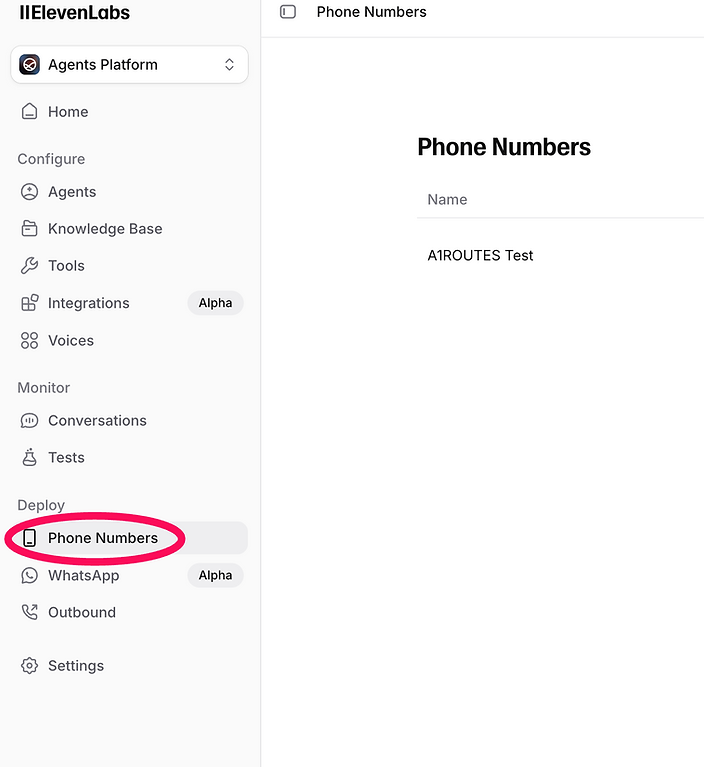
Open Phone Numbers from the left menu under Deploy
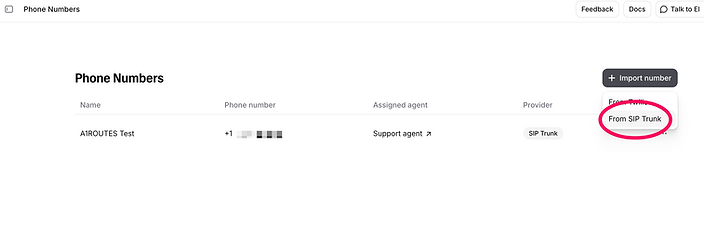
Select From SIP Trunk from Import Number button
Step 2: Create a New SIP Trunk
Click From SIP Trunk
Enter appropriate name in Label field
Enter your DID number bought from A1ROUTES in Phone number field
There is nothing much to do inbound configuration.
Step 3: Outbound Configuration
Fill the SIP configuration as follows:
Use the following SIP configuration values:
Address: sip.a1routes.com or the host provided by A1ROUTES
Transport: TLS or TCP
SIP Trunk Username: sipusername@domain.com
SIP Trunk Password: your A1ROUTES SIP password
Port: 5060
Port: 5060 (unless specified otherwise)
Save the trunk. by clicking Import button at the bottom.
Step 4: Set Outbound Caller ID
Go to Outbound Settings
Set Caller ID / From Number
Use your A1ROUTES DID
Or a verified number
Enable Send From Header
Step 5: Assign SIP Trunk to an Agent or App
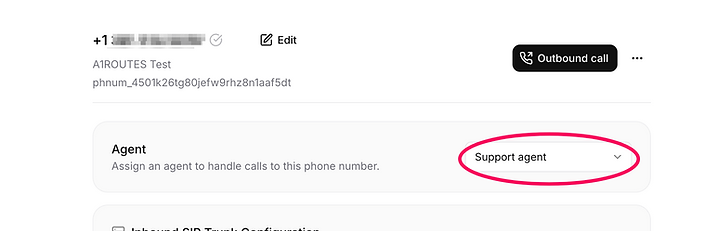
Edit the phone number just got imported in ElevenLabs by clicking on phonenumber
Select Agent from the drop down menu
Step 6: Test Outbound Call
Initiate an outbound call from ElevenLabs
Dial an external number (mobile or PSTN)
Confirm:
Call connects
Audio is clear
Caller ID is correct
Common Issues and Fixes
Call not connecting→ Verify SIP username and password
401 Unauthorized→ Verify SIP username and password
Conclusion
Your A1ROUTES SIP trunk is now successfully configured with ElevenLabs for outbound calling.This setup allows reliable PSTN breakout with low latency and competitive rates.